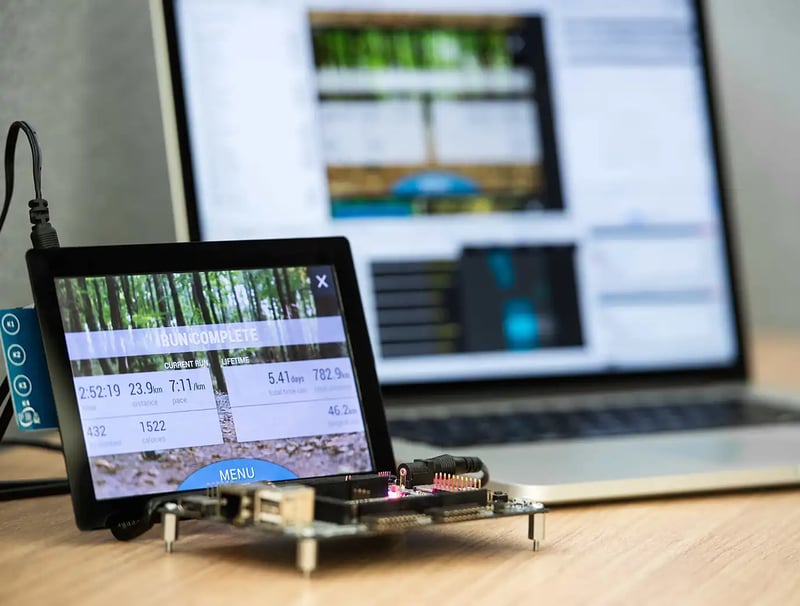
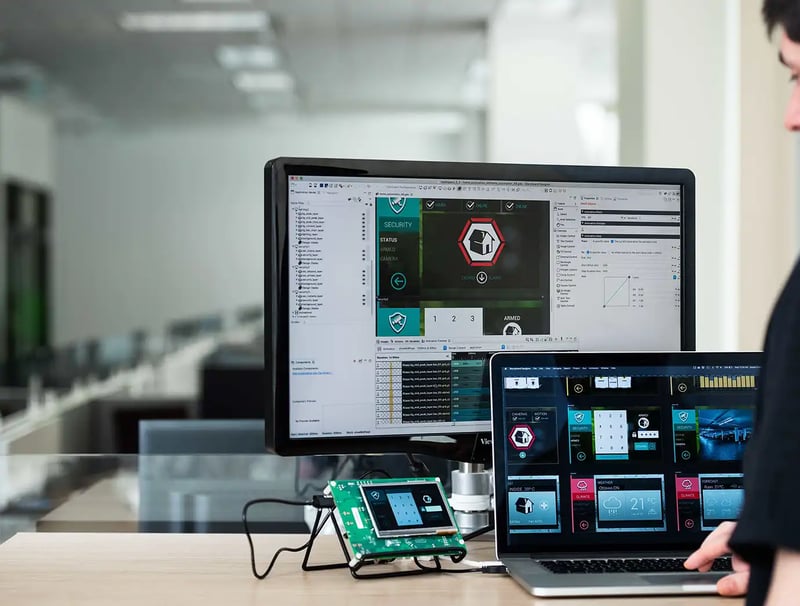
Crank Software's Storyboard Suite provides support of TI's BeagleBoard on multiple platforms.
The first thing you need to do to get started with Crank Software's Storyboard is to download the free evaluation version from our website. The Storyboard Designer can be hosted on either Windows or Linux.
You will next need to have your Beagleboard running Linux. For instructions on how to setup your board please follow this link.
Note: If using directfb, it is not installed by default. To install directfb on the Beagleboard use the following command ...
opkg install directfb
First we need to slay X on the Beagleboard. Use the following command to slay the windowing system ...
pkill gpe-dm
Now we must put the plugins and engine onto the target. The files can be copied to the target or remotely mounted. Create a directory on the target for the Engine such as "Storyboard". In a final setup you would only put the plugins your application requires but for this example we will put all plugins on the target. Create 2 new directories and copy the following files from host to target:
[install root]/Storyboard Engine/linux_armle-armle-fbdev-obj/plugins/* -> [target]/Storyboard/pluginsNote: If your application uses the Storyboard IO API then make sure that you have configured the Linux kernel for mqueue.
Note: If using fbdev or OpenVG use the following command to enable mouse input ...
[target]/bin/sbengine -oscreen_mgr,swcursor=1 -odev-input,mouse=/dev/input/event2 /tmp/button-example/button-example.gapp
You will next need to have your Beagleboard running WinCE. MPC Data offers evaluation binaries of their WinCE BSP.
Download the binaries from here.
The PDF "MPC Data Limited Windows CE 6.0 BSP for BeagleBoard Quick Start Guide" is a useful quick-start guide to setting up hardware and formatting your SD card.
To boot from an SD card:
This image supports both the USB host and the OTG port. This allows a hub to be plugged in to the host, while using the OTG port to connect to a laptop/desktop allowing you to use the Windows Mobile Device Center.
The image also provides ceshell support, so you can use a command (cmd.exe) window.
When you installed Storyboard all of the supported target configurations were installed to "[install root]/Storyboard Engine". Each directory there contains the plugins and binaries required to run Storyboard on an embedded target. For this example we will assume a Windows CE system based on Windows CE 5.2 or better.
Note: Windows CE 6.0 (and to a lesser degree 5) is very customizable. Your target Windows CE image needs to have Alphablending enabled in libGWES.dll in order to be compatible with Storyboard 1.1. To receive verbose output using the -v option, you must ensure a console is build into your target Windows CE image.
First we must put the plugins and engine onto the target. The files can be copied to the target or remotely mounted. Create a directory on the target for the Engine such as "Storyboard". In a final setup you would only put the plugins your application requires but for this example we will put all plugins on the target. Create 2 new directories and copy the following files from host to target:
[install root]/Storyboard Engine/wince-armle-win32-obj/plugins/* -> [target]/Storyboard/pluginsNow we need an application to run. Samples are shipped in the "[install root]/Samples" directory. Copy one of these to the target system, copy all files in the selected sample as the samples contain all of the images, fonts, scripts and deployment files required. For example copy "button-example" to the target system's "/tmp" directory.
Storyboard loads plugins for added functionality. Because Windows CE does not support environment variables, the plugin must be specified as a command line option:
-omodel_mgr,plugin_path="[target]/Storyboard/plugins"Should you not specify the plugin directory via the command line, the Storyboard engine will load plugins form the directory where the executed gapp file resides.
Now you can run your application.
[target]/bin/sbengine -omodel_mgr,plugin_path="[target]/Storyboard/plugins" /tmp/button-example/button-example.gappTo get support or to discuss features and requirements check out the Crank Software forums.